
How to obtain an OAuth access token using a Personal Access Token
This guide explains how to manually obtain an access token for local testing using a Personal Access Token.
Obtaining a Personal Access Token
- Navigate to https://myaccount.goto.com.
- Click on Developer Tools in the left menu.
- Click the Create token button.
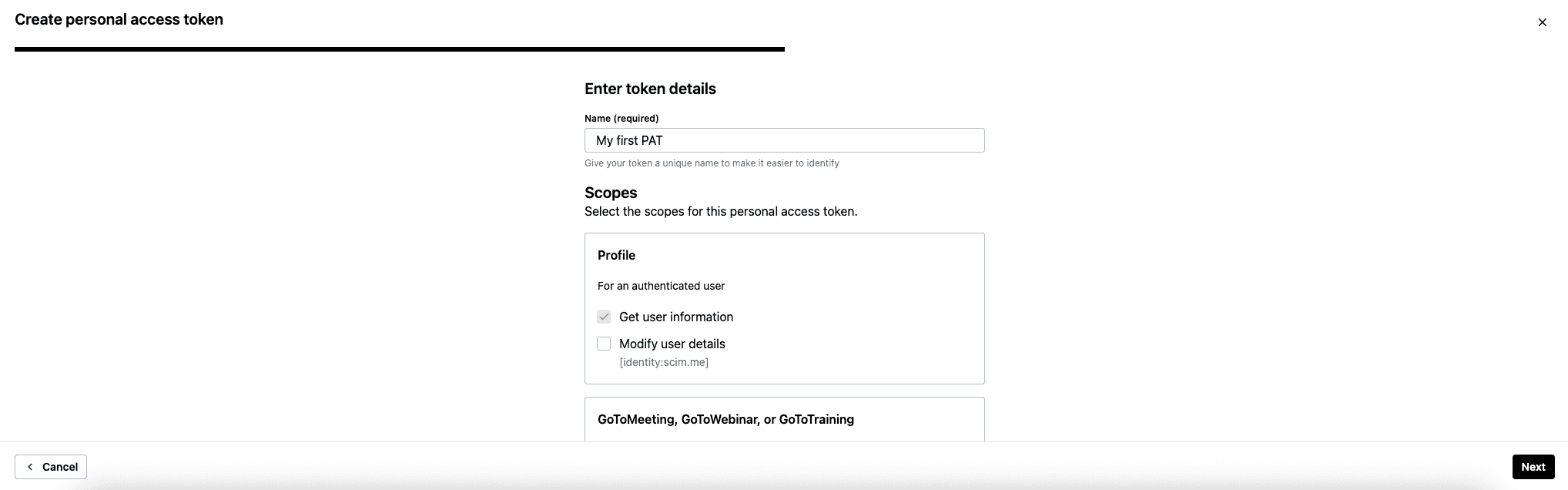
- Provide a name for your token.
- Enable the scopes you want your token to allow, then click Next. Note: These must match the scopes enabled in your OAuth Client.
- Copy the token and save it in a secure place. Once saved, click the checkbox acknowledging you have stored the token, then click Done.
Create Personal Access Token Sample
Enable Personal Access Token Grant Flow on Your OAuth Client
- Navigate to https://developer.logmeininc.com/clients.
- Click the pencil icon on the far right for the client you wish to edit.
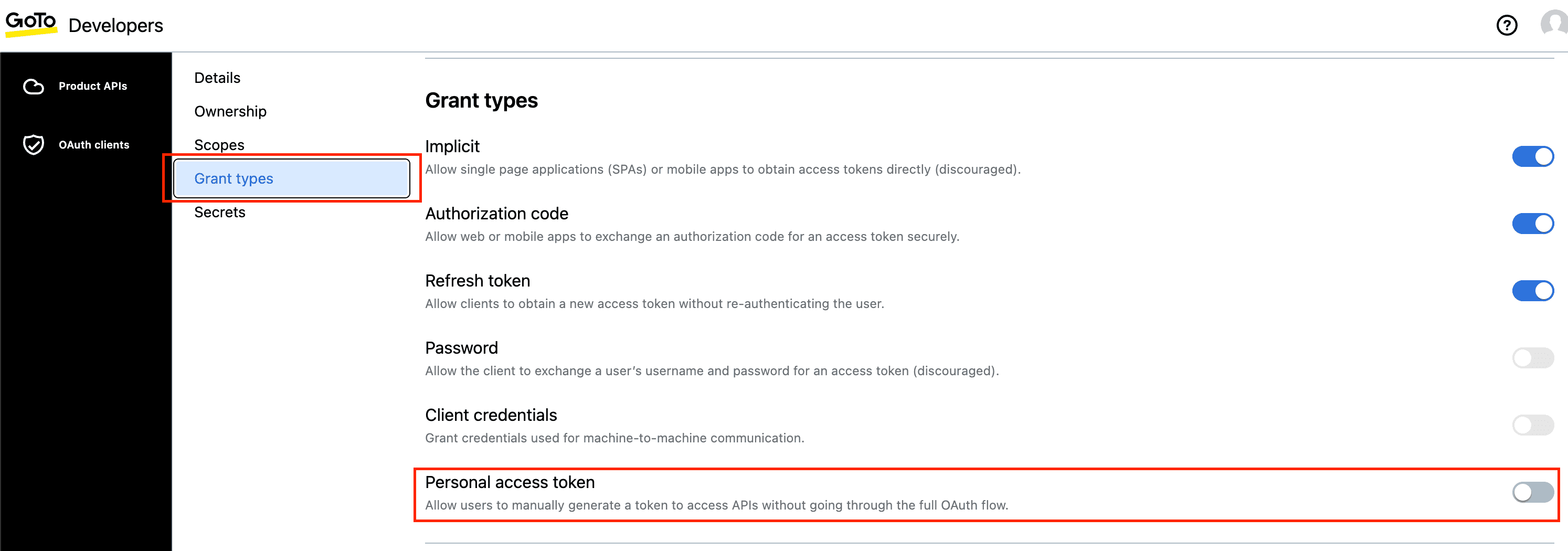
- Click on Grant types in the left menu.
- Toggle Personal Access Token to enabled.
- Click Save in the bottom right.
Enable Personal Access Token Sample
Obtain an Access Token
You can now exchange the Personal Access Token for an API access token.
Request an access token using a POST call. This call can be sent through Postman, cURL, or other HTTP clients.
The cURL example below shows the full request. Details on creating the Authorization header and other POST data follow the code sample.
curl -X POST "https://authentication.logmeininc.com/oauth/token" \
  -H "Authorization: Basic YTIwfAKeNGYtODY4YS00MzM5LTkzNGYtNGRhMmQ..." \
  -H "Accept:application/json" \
  -H "Content-Type: application/x-www-form-urlencoded" \
  -d "grant_type=personal_access_token&pat=iS0vynEEvRFA9i6kZ8gvNDnnOGE..."
The personal access token value above is truncated for clarity.
Authorization Header
The Authorization header must contain the client ID and secret encoded in Base64 format. You can use the following Bash snippet to generate it:
echo -n "CLIENT_ID:CLIENT_SECRET" | base64where CLIENT_ID and CLIENT_SECRET are replaced with your actual values.
The encoded value will look like:
YTIwfAKeNGYtODY4YS00MzM5LTkzNGYtNGRhMmQ...Add this value to the Authorization header after the word Basic as shown in the cURL example above.
Data Parameters
| Parameter | Description | Format | Required |
|---|---|---|---|
| grant_type | personal_access_token | string | Yes |
| pat | Personal access token from the Developer Tools page | string | Yes |
Response Example
IMPORTANT: The access token is truncated. It is a large string.
{
  "access_token": "eyJraWQiOiJvYXV0aHYyLmxt666...",
  "token_type": "Bearer",
  "expires_in": 3600,
  "scope": "users.v1.lines.read calls.v2.initiate",
  "principal": "mister.jones@fakemail.com"
}
Response Data
The following table describes the response fields.
| Parameter | Description |
|---|---|
| access_token | OAuth access token |
| token_type | The type of the access token (always "Bearer") |
| expires_in | The duration, in seconds, until the access token expires |
| scope | The allowed scope(s) for the issued token, separated by whitespace |
| principal | The email address of the token owner |
This access token can now be used to authorize API requests by setting it in the Authorization header with the following format: Authorization: Bearer {access_token}. For example, to make a GET Me request to the SCIM API (which provides useful information about the authenticated user):
curl -H "Accept: application/json" \
-H "Authorization: Bearer eyJraWQ..." \
"https://api.getgo.com/identity/v1/Users/me"- How do I get started?
- How to create a developer account
- How to create an OAuth client
- How to obtain an OAuth access token
- How to obtain an OAuth access token using a Personal Access Token
- How to obtain an OAuth access token (in Node.js)
- How to Obtain and Use Refresh Tokens
- Migrating to New Token Retrieval with authentication.logmeininc.com
- How to use GoToConnect API to fetch account users and lines
- How to create, update and delete account users via Admin API
- Call Events Screen Pop Tutorial
- Send SMS tutorial
- How to use Voice Admin APIs
- How to create a channel and receiving notifications from GoTo services
- How to subscribe to and get call events
- Fetching Call Events Reports
- Make and Receive Calls using the Devices and Calls API
- How to send messages and receive notifications with the Messaging API v2
- GoTo Connect APIs Host Migration
- GoToWebinar webhooks
- How to use GoToWebinar webhooks
- What API information is available for GoToMyPC?
- How to Setup an Integration with Central
- How to Setup an Integration with Rescue
- Rescue iOS and Andriod SDK
- Introduction
- Java SDK
- .NET SDK
- Direct login migration
- How to use Postman API collections
- How much do the GoTo APIs cost?
- How do I get support for the APIs?
- Rate Limiting